Fompi is on its way.
Fompi-Mac.dmg is downloading to your Downloads folder. Here’s how to open it the first time.
Didn’t start? Download again
Opening it the first time.
This early version is not signed by Apple yet, so your Mac asks you to confirm it once.
- Open Fompi-Mac.dmg and drag Fompi into your Applications folder.
- Open Fompi from Applications. macOS says it can’t check the app and doesn’t open it. Close that message.
- Open System Settings, then Privacy & Security. Scroll down to the message about Fompi and click Open Anyway, then confirm with your password.
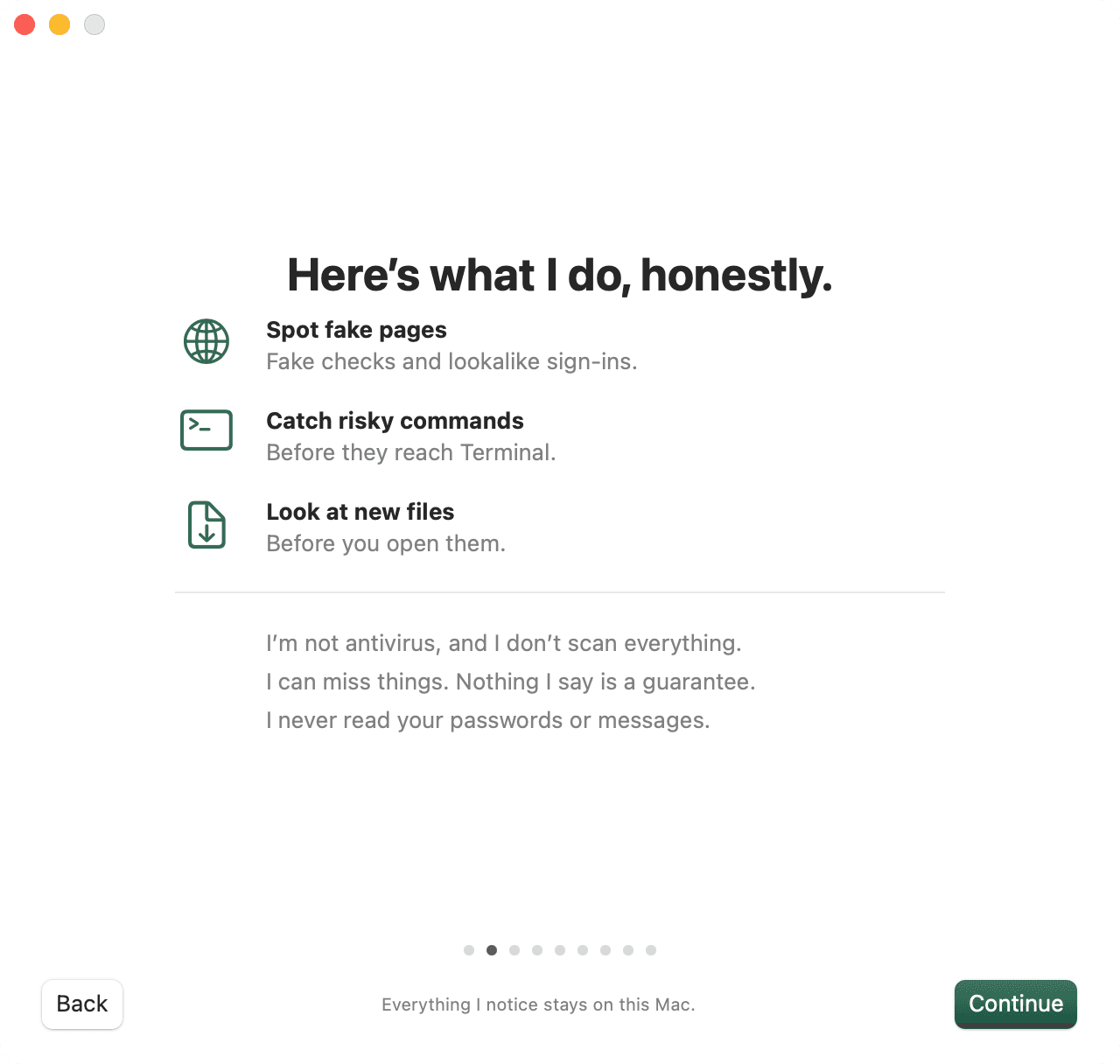
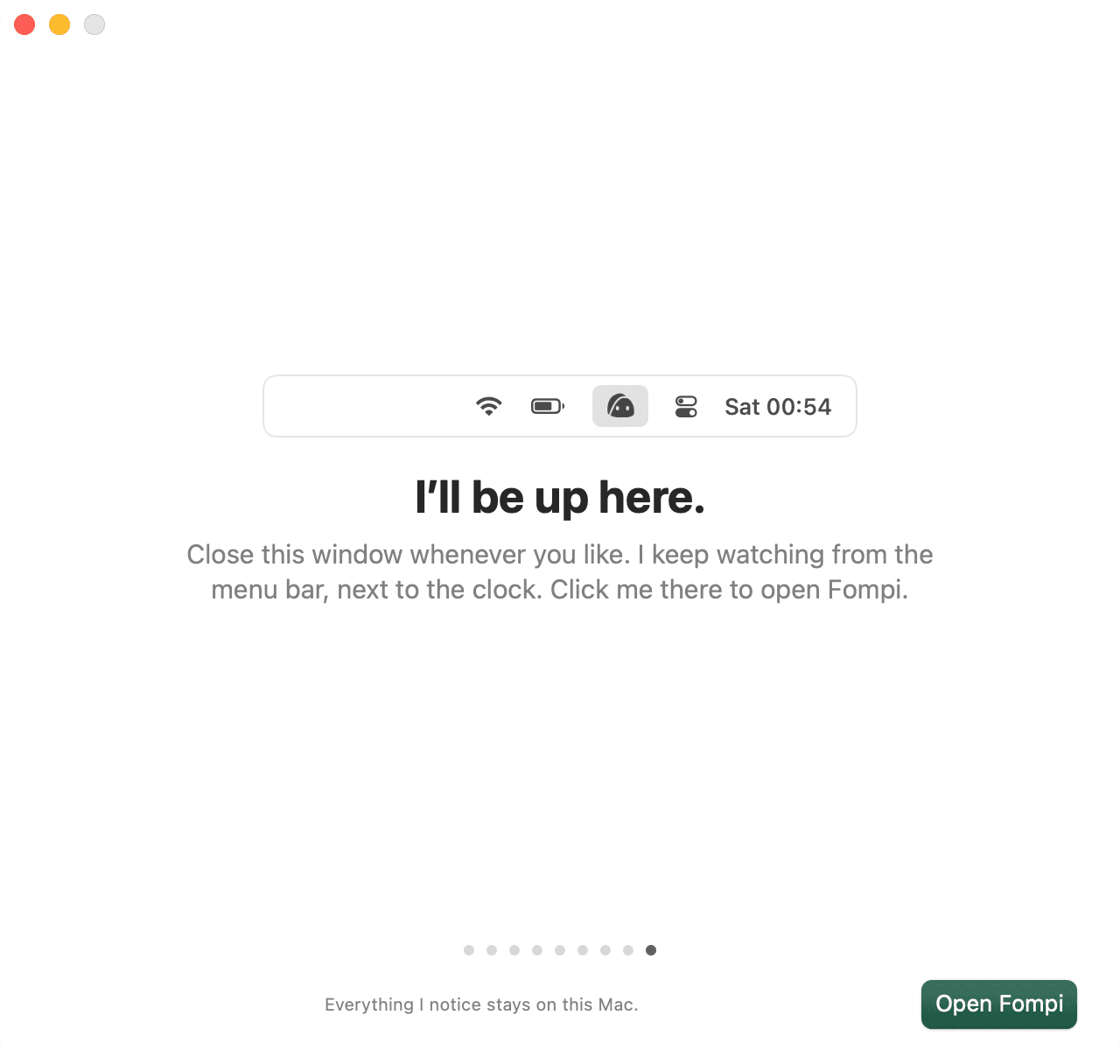
- Fompi opens and shows you around. From now on it opens like any other app.






Fompi for Chrome.
The Chrome extension arrives with its Chrome Web Store listing, which is on its way. Until then, skip the Chrome step during setup. The app works on its own, and you can add the extension later from inside it.
Needs macOS 14 Sonoma or later, on Apple silicon or Intel. On Windows? Get Fompi for Windows.